Self-Ordering Setup
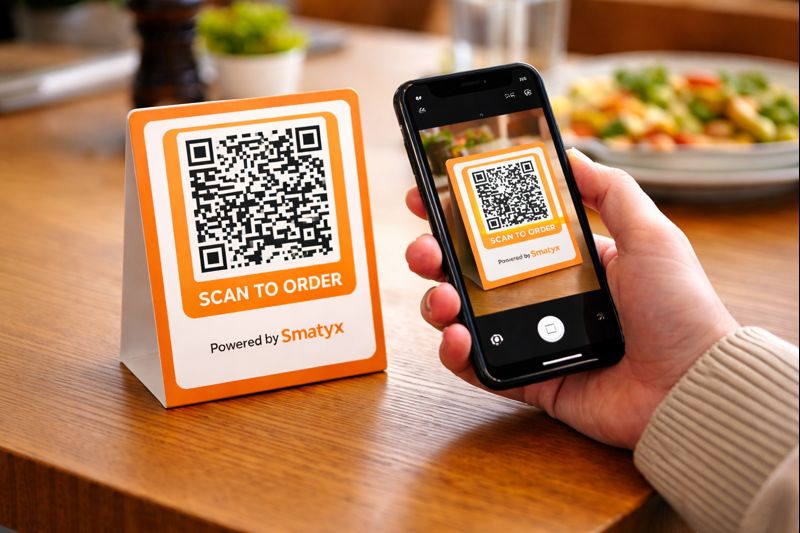
Let your guests order directly from their phones using QR codes. No app download required — it works in any mobile browser.
How It Works
- You place QR codes on each table
- Guests scan the QR code with their phone camera
- They see your digital menu and place their order
- The order goes directly to your POS and kitchen display
Enabling Self-Ordering
- Log in to your Smatyx dashboard
- Go to All Apps > Settings > Self-Ordering
- Toggle Enable QR Ordering to ON
- Configure your preferences:
- Allow or require table number selection
- Set a minimum order amount (optional)
- Enable or disable tips
Generating QR Codes
- Go to Self-Ordering > QR Codes
- Click Generate QR Codes
- Select the number of tables
- Download the QR codes as a PDF
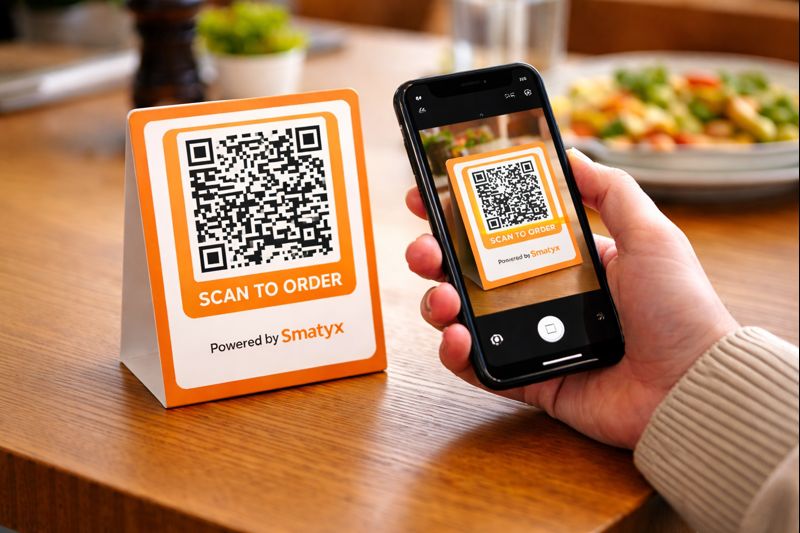
- Print and laminate them for durability
- Place one QR code on each table
Menu Customization
Your self-ordering menu is automatically synced with your main menu. To customize what guests see:
- Go to Self-Ordering > Menu Settings
- Hide items that are dine-in only or not available for self-ordering
- Add photos to menu items for better presentation
- Write appealing descriptions
Payment Options
Configure how guests pay:
- Pay at counter — Guests order via phone, pay at the register
- Online payment — Guests pay directly from their phone after ordering