Account & Login
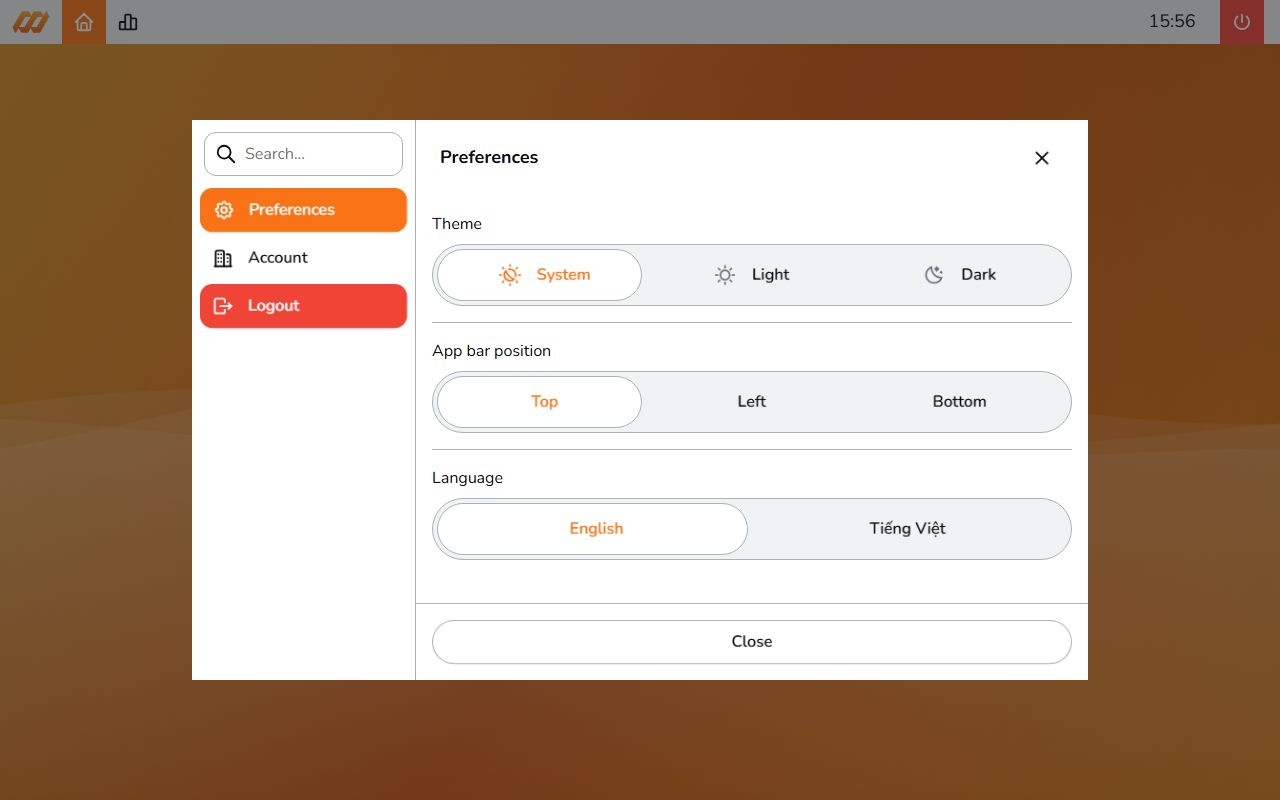
All account settings are in the Power menu. Tap it in the app bar to open it.
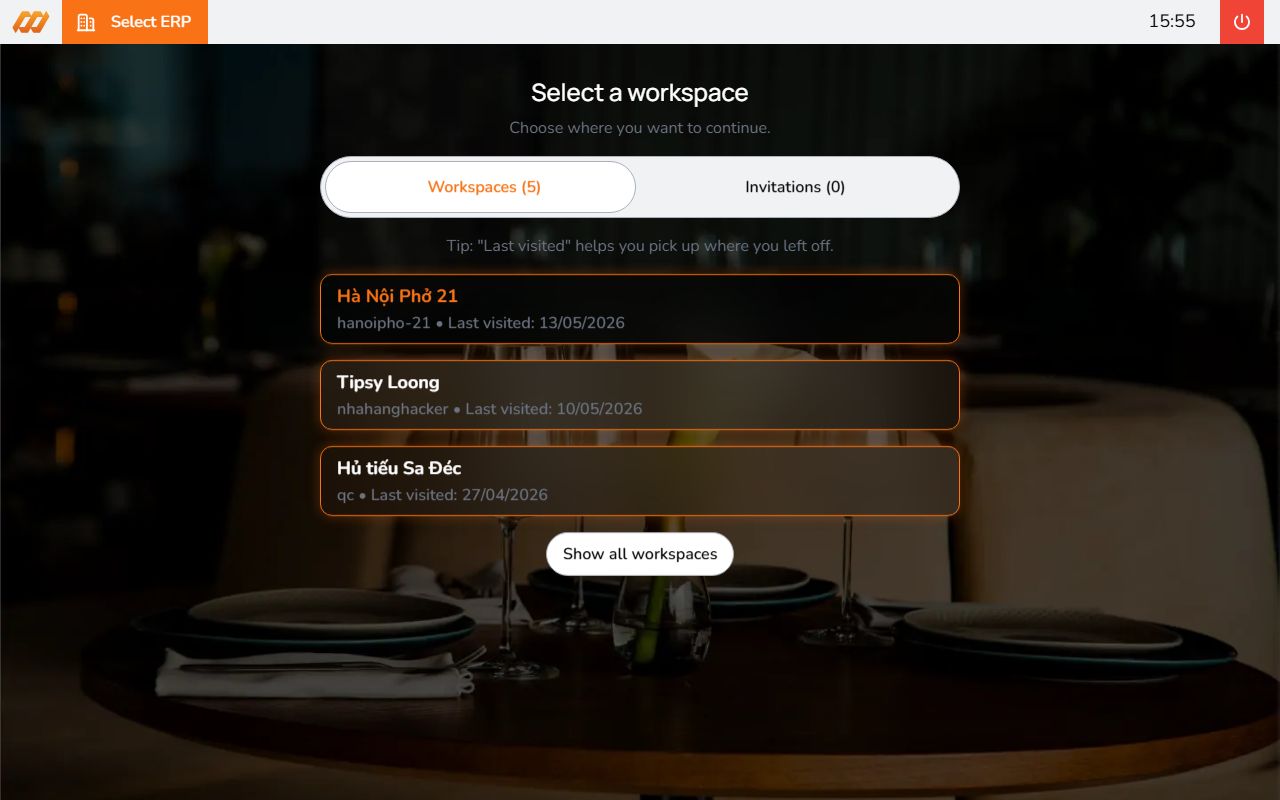
Selecting a workspace
If you have access to multiple Smatyx accounts (different restaurants or organizations), you'll see a workspace selector after logging in.
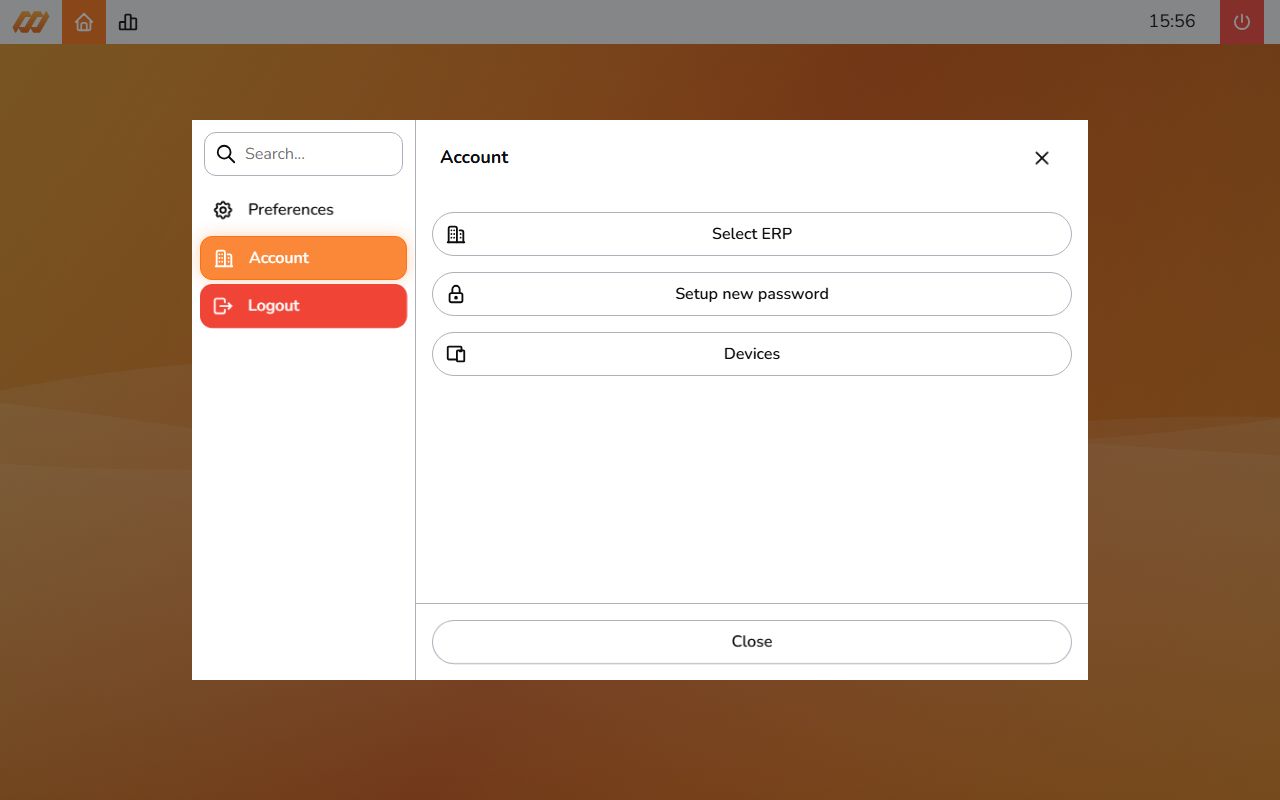
To switch workspace later:
- Open Power
- Go to the Account tab
- Tap Select Workspace
Accepting an invitation
When someone adds you as an employee in Smatyx, you get an email invitation.
- Check your email for the invitation
- Click the link
- Create your password
- Log in
Your status changes from Not Invited to Invited to Joined.
Changing your password
- Open Power
- Go to the Account tab
- Tap Change Password
- Enter your current password and new password
- Save
Forgot your password
- On the login page, tap Forgot Password
- Enter your email address
- Check your email for the reset link
- Click the link and create a new password
Logging out
- Open Power
- Tap Logout at the bottom of the sidebar (red)
- Confirm