POS Setup
Who is this article for?
Account owners, or team members with:
- Manage stores
- Manage menus
Set permissions in All Apps > Settings > Roles.
Smatyx POS runs in any modern browser. No app install needed.
Requirements
- A tablet (iPad or Android) or computer with a web browser
- Internet connection
- Your Smatyx account credentials
Installation
On Tablet
- Open your device's web browser
- Go to app.smatyx.com
- Log in with your credentials
- Tap Add to Home Screen for quick access
On Computer
- Open Chrome, Safari, or Firefox
- Go to app.smatyx.com
- Log in and bookmark the page
Menu configuration
Set up your menus and items before opening:
- Go to All Apps > Settings > Items to create menu items
- Go to All Apps > Settings > Menus to organize items into menus
- Assign menus to your store in store settings
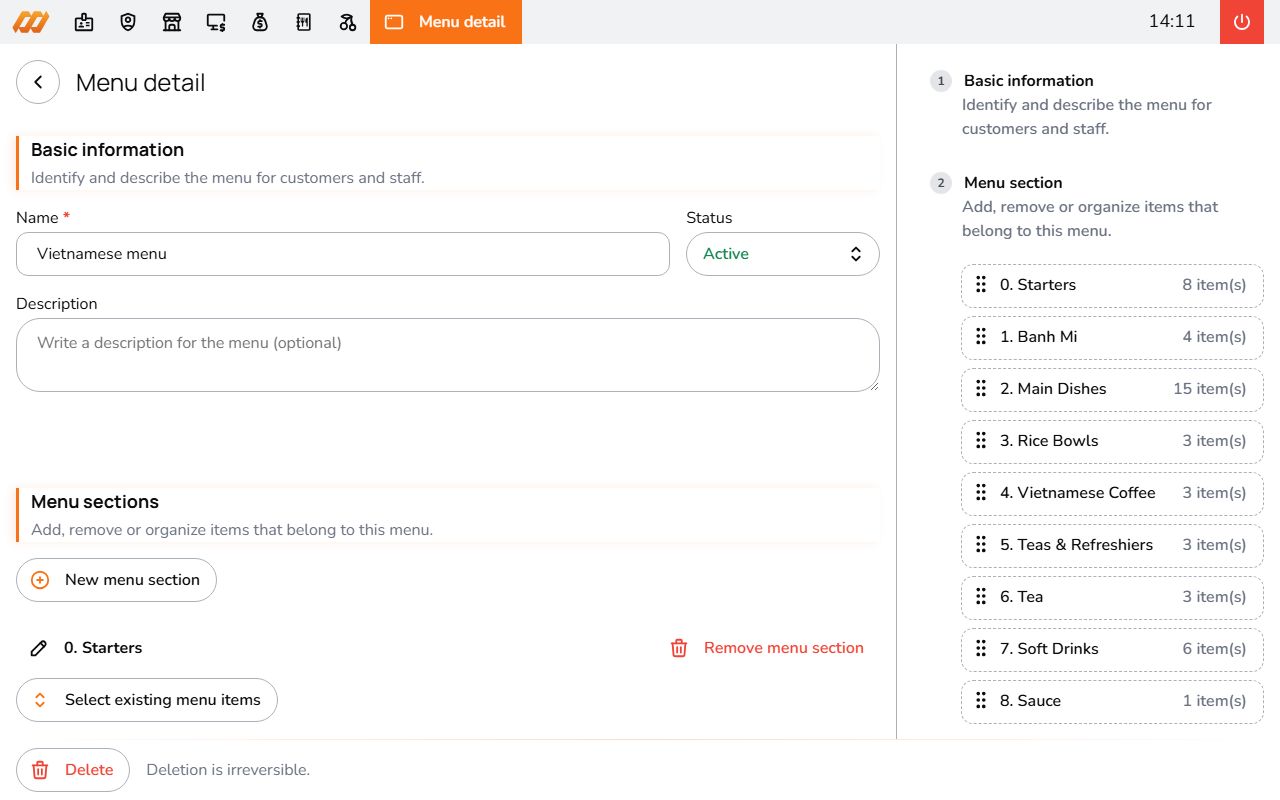
You can restrict menus by order method (e.g., smaller menu for delivery) or by time slot (e.g., lunch menu 11h-15h).
See the Quick Start guide for a detailed walkthrough of creating items and menus.
Store configuration
Set up your store before taking orders:
- Go to All Apps > Settings > Stores
- Open your store (or create one)
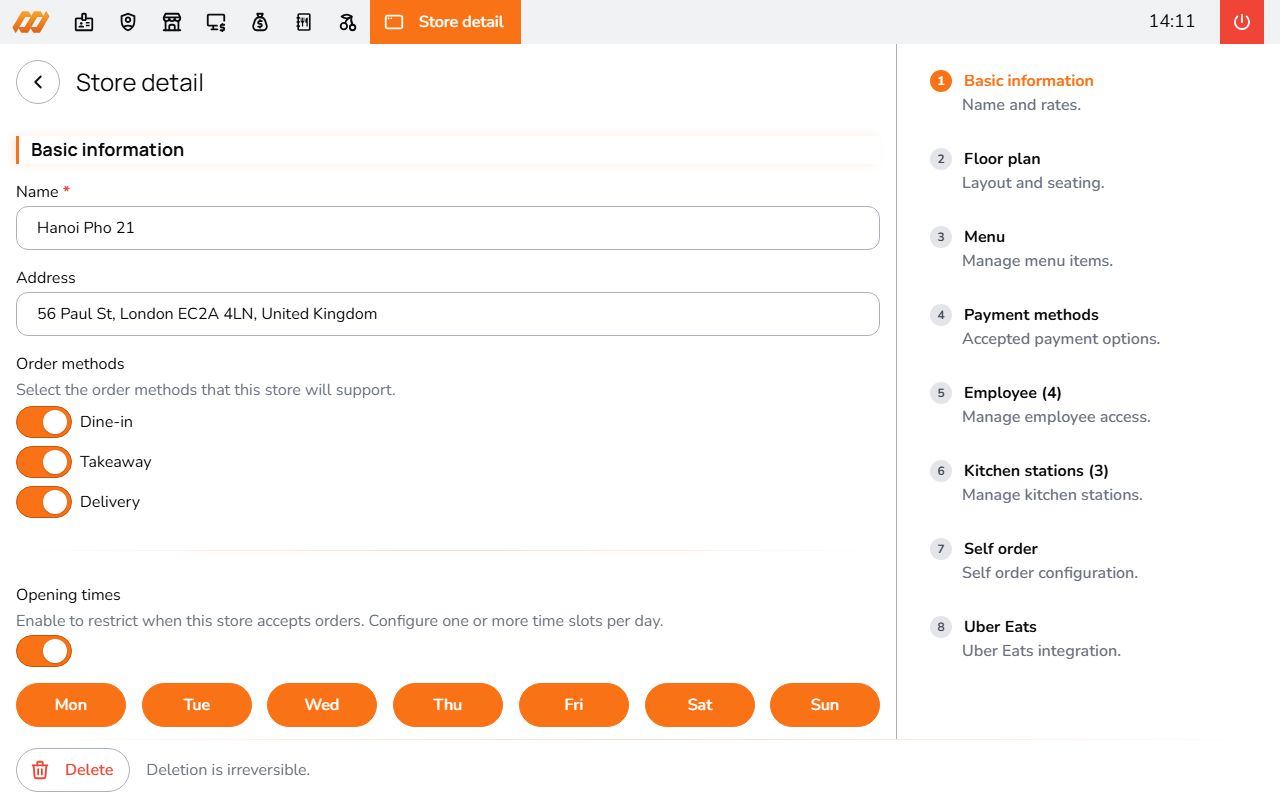
In the store settings you can configure:
- Name and address - your restaurant info
- Order methods - dine-in, take-away, delivery
- Payment methods - cash, bank transfer, Momo, VNPay, Dojo
- Opening hours - when the store accepts orders
- Kitchen stations - split your kitchen into zones (grill, drinks, desserts) so orders route to the right screen
- Employees - assign staff to this location
Floor plan & tables
For dine-in service, set up a visual floor plan:
- Open your store settings
- Find the Floor Plan section
- Add a floor (e.g., "Ground Floor", "Terrace")
- Add tables with number and seating capacity
- Drag tables to position them
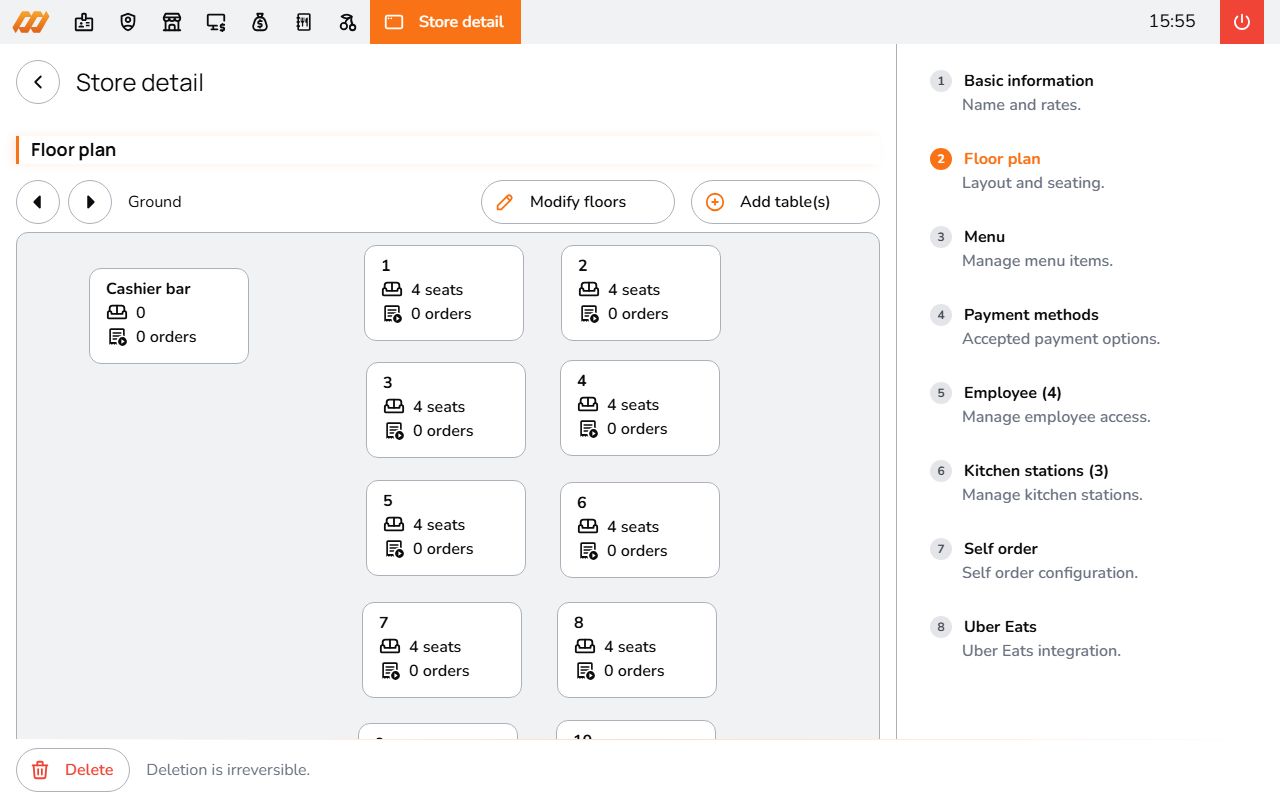
You can create multiple floors. Staff can switch between list view and layout view when selecting tables in the POS.
Payment terminals
Set up card readers (like Dojo):
- Go to All Apps > Settings > Terminals
- Click Add Terminal
- Follow the pairing instructions
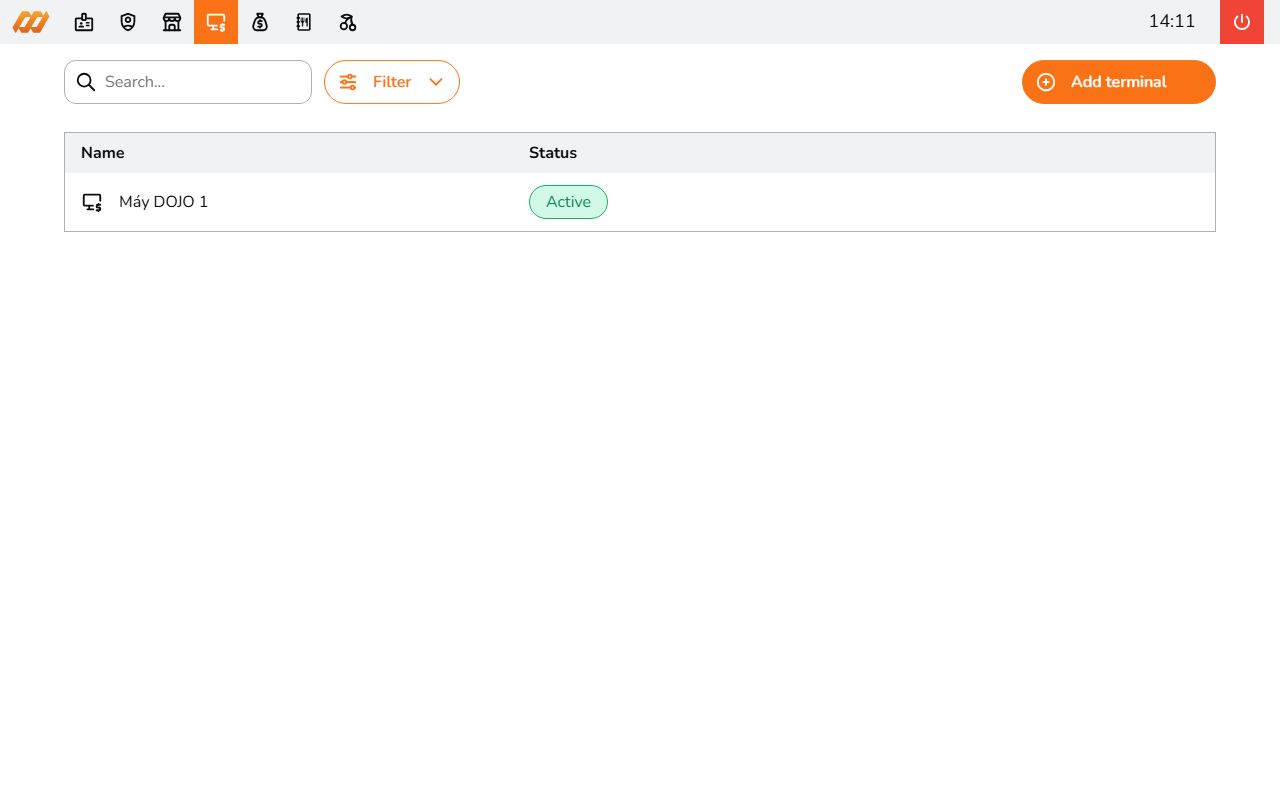
One tablet can work with multiple terminals.