Sales Shifts
Who is this article for?
Account owners, or team members with:
- Manage sales shifts
Set permissions in All Apps > Settings > Roles.
A sales shift tracks all orders, payments, and cash movement at a store. You need an open shift before you can take orders on the POS. This is not about employee work schedules - it's about tracking what happens at the register.
Select a store first
- Go to All Apps > Sales operation
- Tap the store selector in the app bar
- Pick your store
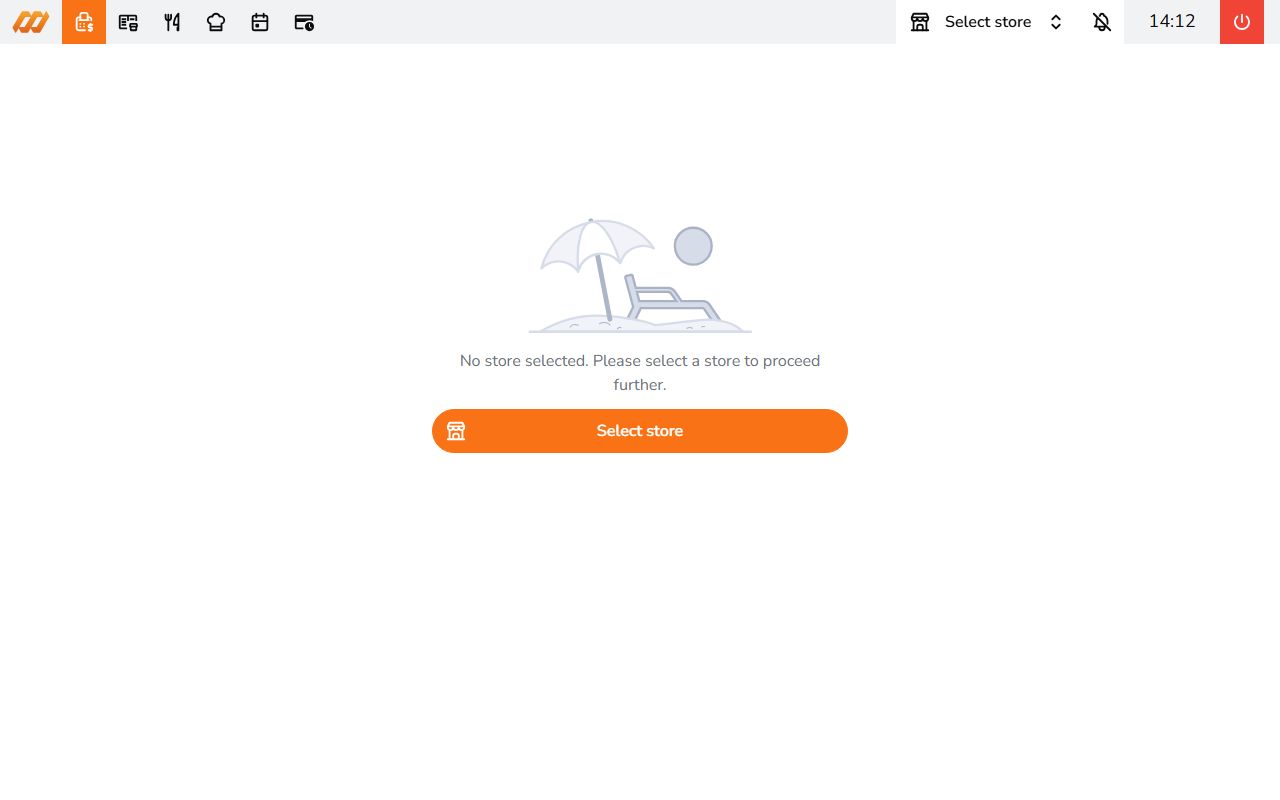
If no store is selected, the system shows "No store selected. Please select a store to proceed further."
Opening a shift
- Go to Shift
- Tap Open Shift
- Enter the opening cash amount
- Add optional notes
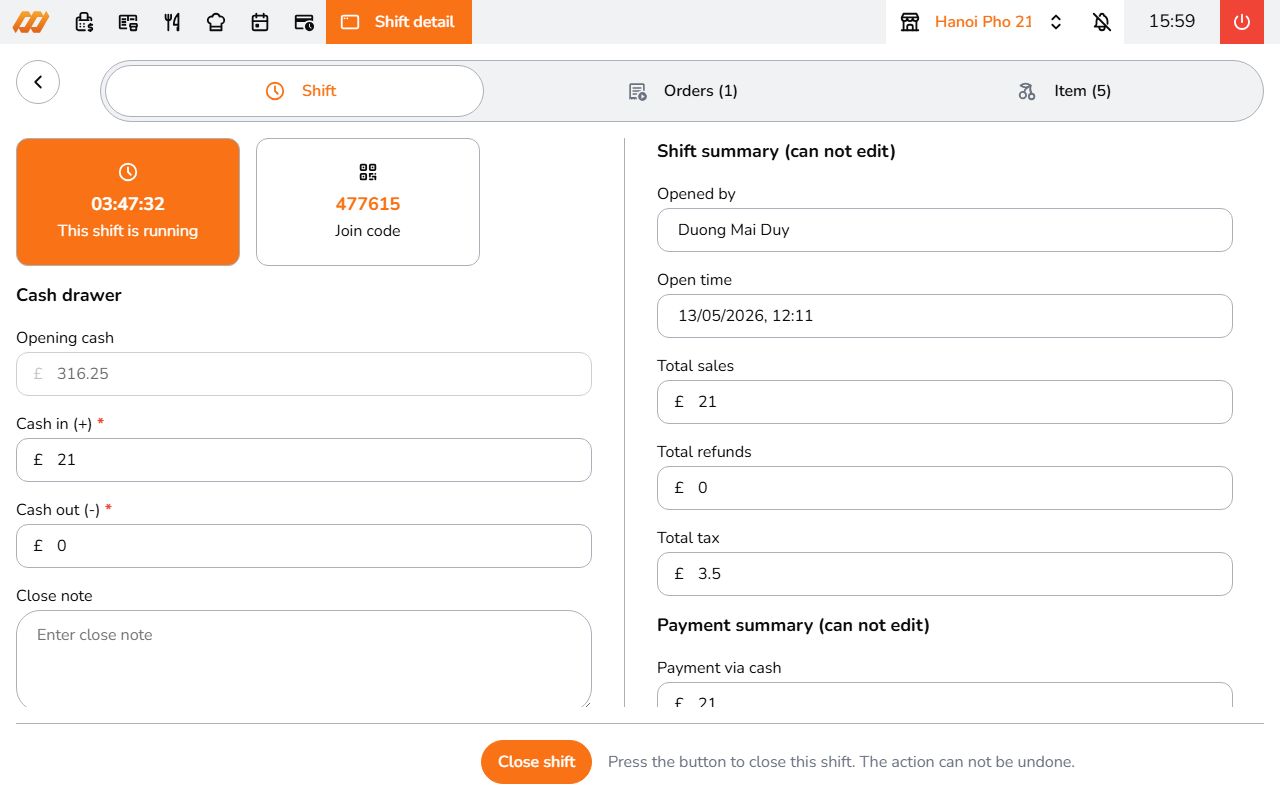
A unique shift code is generated. Other staff members use this code to join the shift so their orders are tracked under it.
Joining a shift
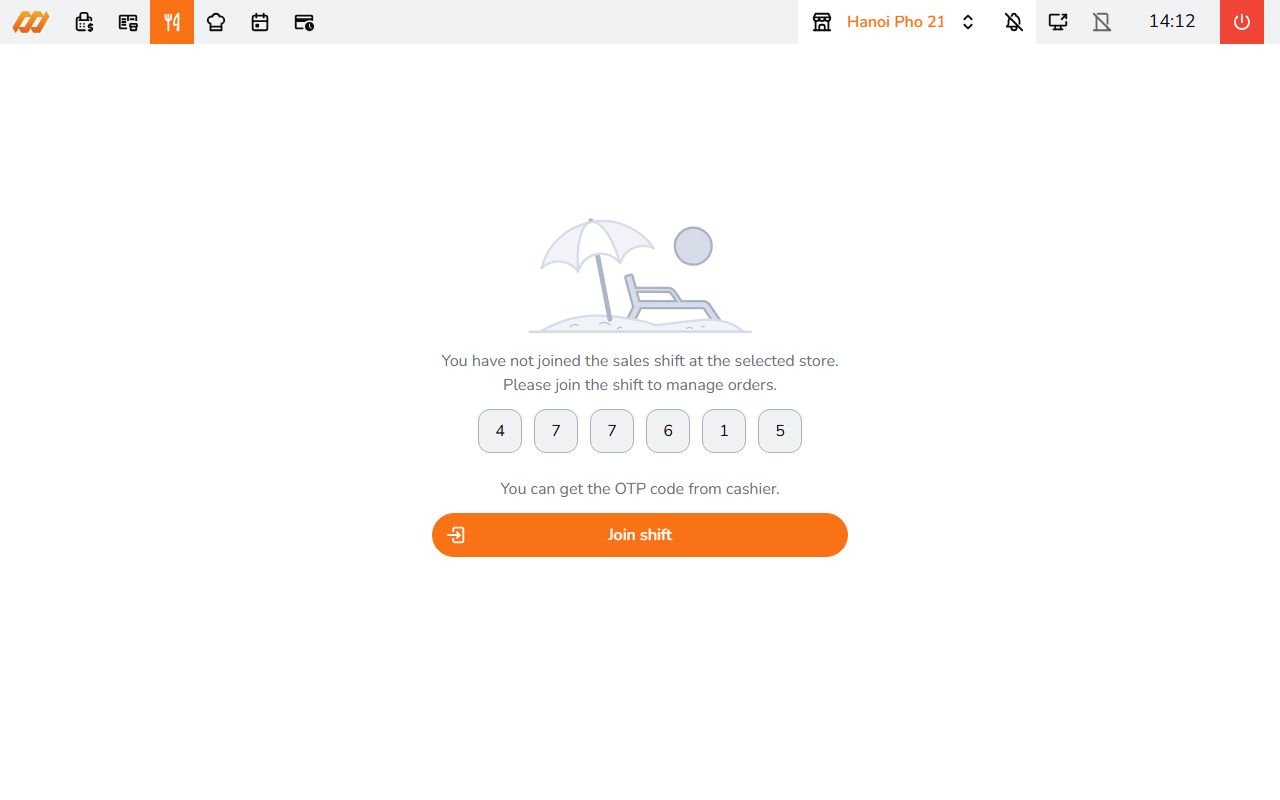
Staff join the shift by entering the shift code. This links their orders and payments to the shift. Even staff without permission to view or manage shifts can join one using the code.
During a shift
- All orders and payments are recorded under this shift
- Each order is linked to the staff member who created it
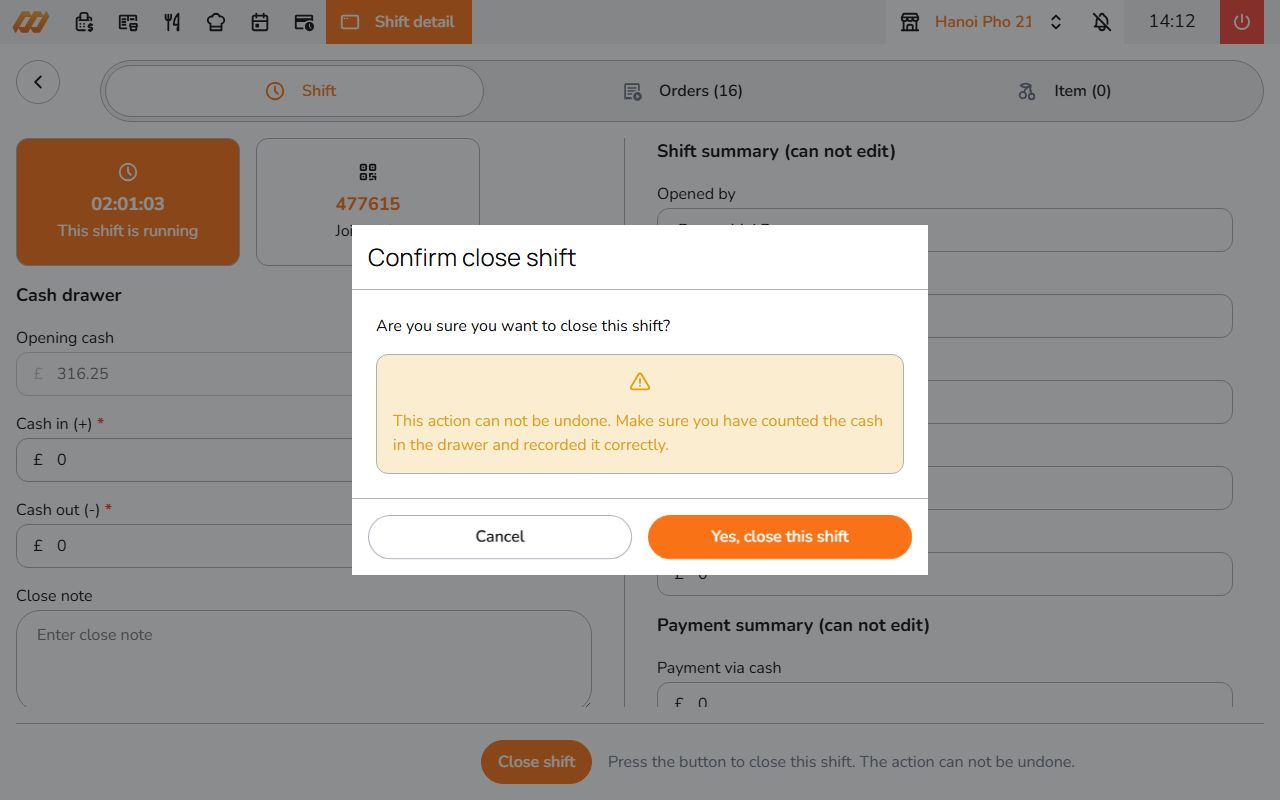
Closing a shift
- Open the shift
- Tap Close Shift
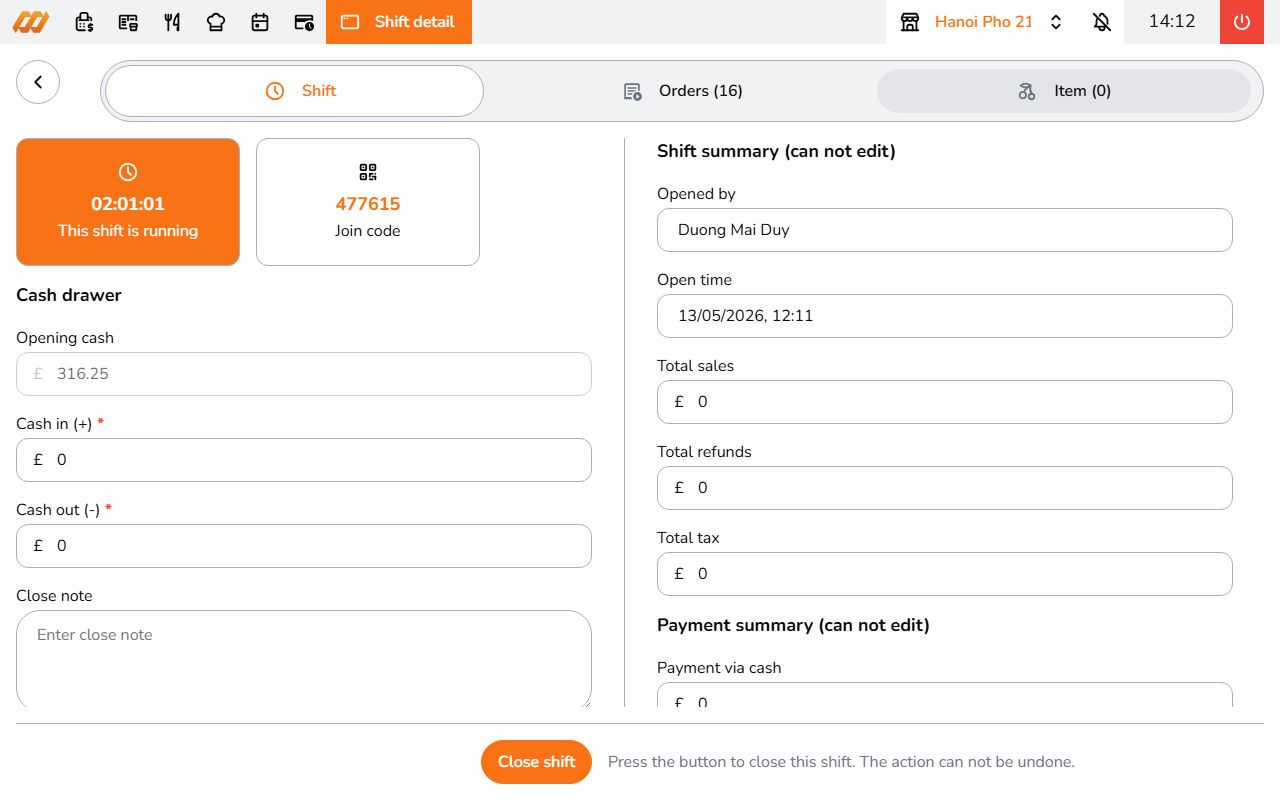
- Enter the Cash In amount (total cash received during the shift)
- Enter the Cash Out amount (total cash withdrawn from the drawer)
- The system calculates the expected closing cash automatically
- Review the summary: total sales, orders by payment method, staff list
You can edit the shift details later if you need to make corrections.