Self-Ordering Setup
Who is this article for?
Account owners, or team members with:
- Manage stores
Set permissions in All Apps > Settings > Roles.
Self-ordering lets guests scan a QR code at their table, browse your menu on their phone, and place an order without waiting for staff.
Enabling self-ordering
- Go to All Apps > Settings > Stores
- Open your store
- Find the Self Order section
- Toggle Enable self order on
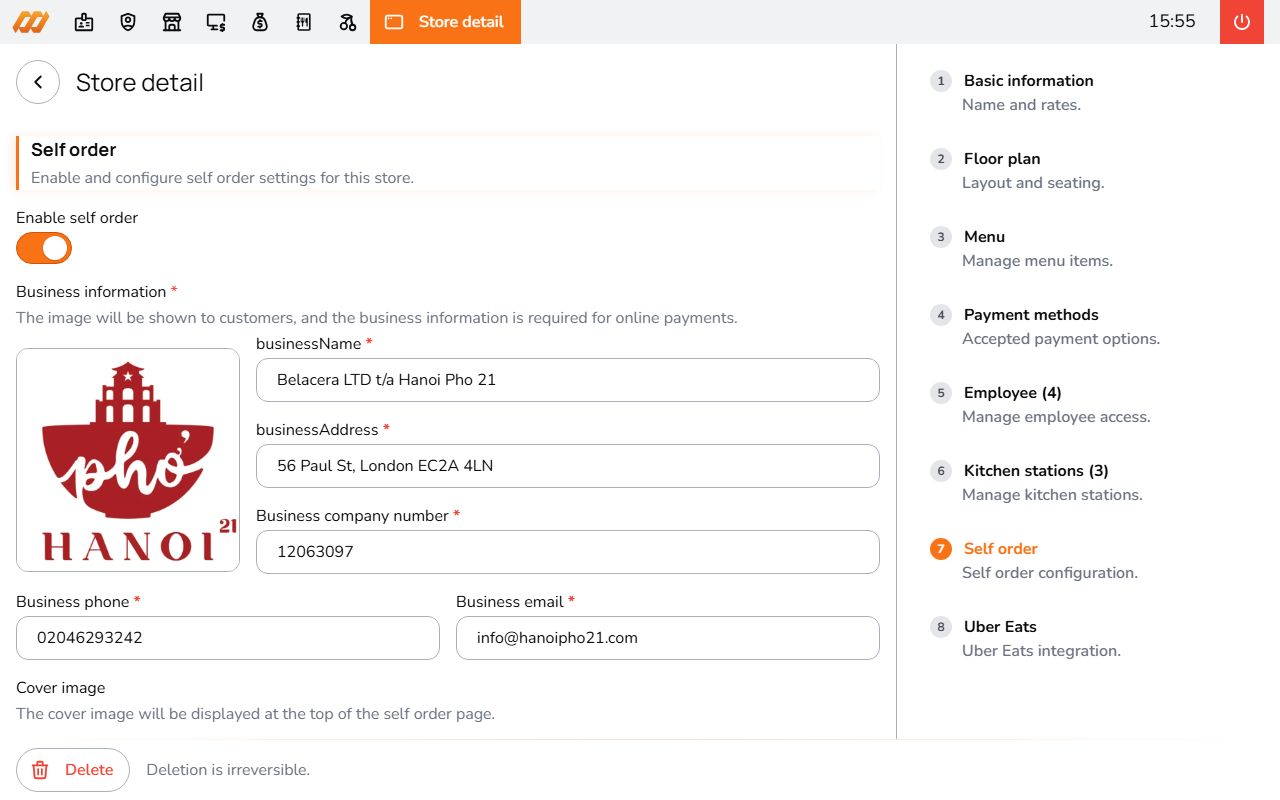
Required configuration
When self-ordering is enabled, you need to fill in:
Business information:
- Business logo (shown to customers)
- Business name
- Business address
- Company number
- Phone and email
Cover image - displayed at the top of the self-order page (16:9 ratio)
Order methods - which methods are available for self-ordering:
- Dine-in
- Take-away
- In-house delivery
Payment methods - how customers can pay:
- Cash (pay at counter)
- Bank transfer (with your bank QR code image)
- Dojo card terminal (requires Dojo API key)
Floor plan for dine-in
Dine-in self-ordering requires a floor plan with tables already set up. Each table gets its own QR code, so the system knows which table the order is coming from.
Menu assignment
Your store needs at least one active menu assigned to it. The menu also needs to have the correct order methods turned on (dine-in, take-away, or delivery) to match what you've enabled for self-ordering.
You can assign menus in store configuration and create menus in All Apps > Settings > Menus.
Publishing
When you save with self-ordering enabled, a confirmation dialog asks you to publish. After confirming, the self-ordering goes live immediately.
QR codes
After publishing:
- Go to the self-order section in your store settings
- Preview your QR codes
- Click Download all self order QR codes to get them as image files
- Print and place them on tables
Each QR code links to your menu for that specific table (dine-in) or a general takeaway page.
Note: QR codes are only available after saving the store.